
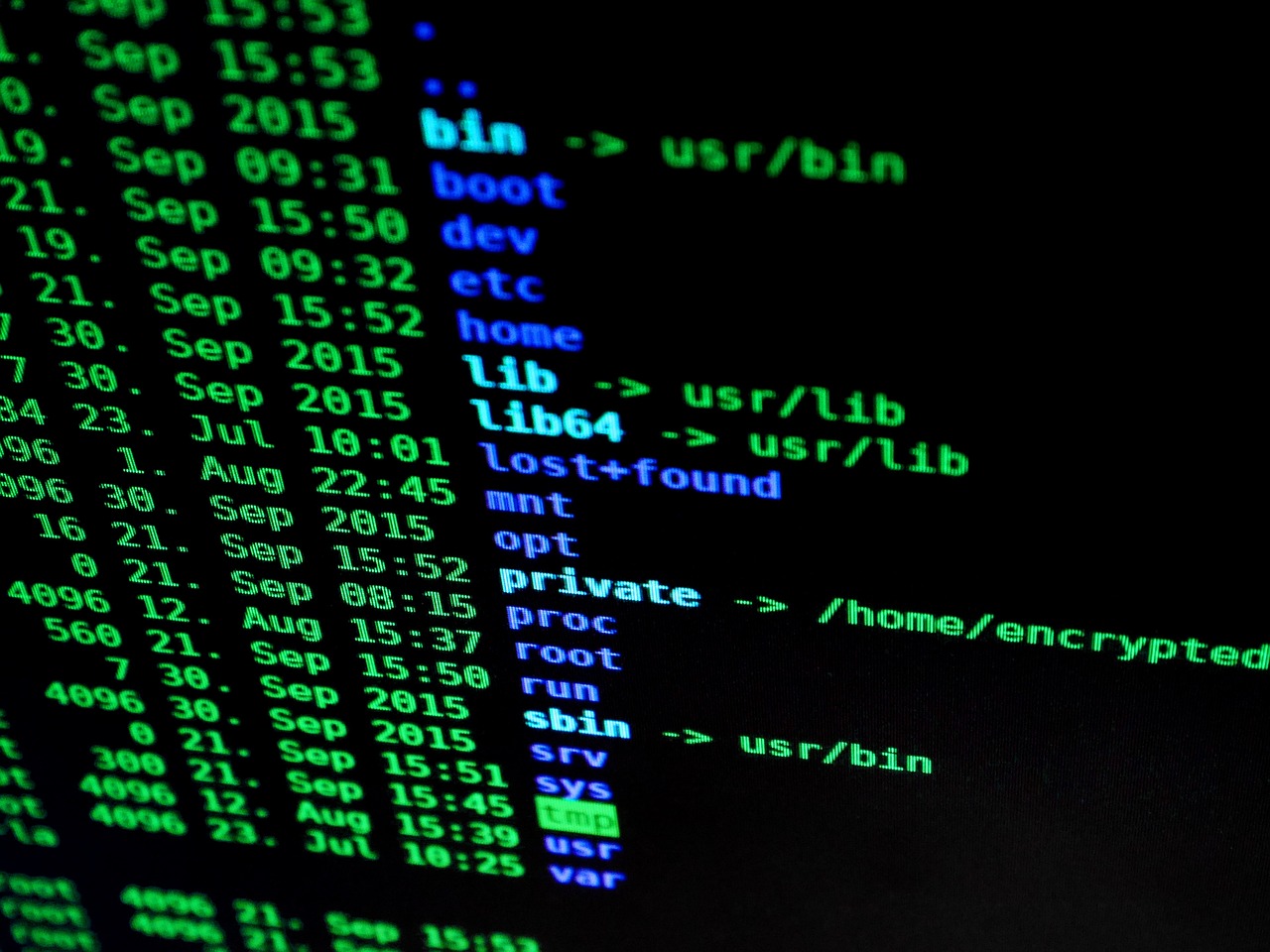
Are you tired of moving files and navigating directories the slow way? Terminal command line shortcuts can supercharge your workflow, saving you time and effort. In this list, we’ll unveil the top command line shortcuts that every computer user should master for efficient file management.
Say goodbye to tedious file handling! Whether you’re a coding newbie or a seasoned techie, these shortcuts will make your life easier and your work faster. Let’s dive in!
1. cd – Change Directory
The cd command is essential for navigating through folders in the terminal. It allows you to switch directories swiftly, ensuring you reach your target location without any hassle.
Key Features:
- Quickly change the working directory.
- Supports relative and absolute paths.
- Use `cd ..` to go back to the previous directory.
Pros:
- Simplifies folder navigation.
- Reduces time spent searching for files.
- Boosts productivity significantly.
Cons:
- Can be confusing for beginners.
- Requires memorization of directory structures.
2. ls – List Files and Directories
The ls command lists all files and directories within your current location. You can customize it with various flags to display detailed information about each item.
Key Features:
- View files and directories at a glance.
- Flags for additional details like size and timestamps.
- Can filter results with wildcards.
Pros:
- Easy overview of current directory contents.
- Customizable output format.
- Helps in identifying file types quickly.
Cons:
- Default output may not show hidden files.
- Advanced flags may overwhelm beginners.
3. mv – Move Files
The mv command is not only for moving files but also for renaming them. This command is essential for keeping your file system organized effortlessly.
Key Features:
- Moves files between directories.
- Renames files in the current directory.
- Supports multiple files and wildcard characters.
Pros:
- Streamlines both moving and renaming tasks.
- Reduces the need for GUI file managers.
- Fast execution of commands.
Cons:
- Unintended overwrites can happen without warnings.
- Requires clarity on file paths to avoid errors.
4. cp – Copy Files
The cp command allows you to duplicate files quickly. You can create backups or replicate files with ease using this simple but powerful command.
Key Features:
- Copies files and directories.
- Flags to preserve file permissions and timestamps.
- Can handle multiple files at once.
Pros:
- Efficient for creating backups.
- Maintains file integrity during duplication.
- Flexible with various options.
Cons:
- No confirmation prompt before overwriting.
- Beginners may find it tricky to use flags correctly.
5. rm – Remove Files
The rm command is to delete files or directories. Although it’s straightforward, use it carefully to avoid losing important data.
Key Features:
- Supports removal of multiple files at once.
- Flags for recursive deletion.
- Optional confirmation prompts can be set.
Pros:
- Fast way to clear unwanted files.
- Reduces clutter in directories.
- Can delete large directories in one command.
Cons:
- Risk of permanent file loss without recovery.
- Can be unintentionally destructive.
6. touch – Create Empty Files
This command is not just about modifying timestamps; it’s primarily used to create new, empty files quickly without opening an editor.
Key Features:
- Creates blank files instantly.
- Can update timestamps of existing files.
- Supports multiple files creation in one command.
Pros:
- Saves time when setting up projects.
- Highly efficient for scripting tasks.
- No need for additional software.
Cons:
- Not useful for pre-populated content.
- May confuse beginners unfamiliar with file types.
7. pwd – Print Working Directory
The pwd command displays the full path of your current directory. It’s essential for ensuring you’re working in the correct location, especially when performing complex file operations.
Key Features:
- Provides the absolute path of the working directory.
- Helps with navigation verification.
- Simplifies scripting by clarifying paths.
Pros:
- Reduces errors in file management.
- Assists in maintaining context during operations.
- Easy to remember and use.
Cons:
- Limited functionality beyond path display.
- Not directly applicable to file manipulations.
How to Choose the Right Command
When diving into terminal commands, consider your specific needs. Familiarize yourself with these shortcuts through practice and experimentation. Start with basic commands and then incorporate more complex operations as your skills grow. A light understanding of Linux command line syntax can also elevate your efficiency!
#TerminalCommands #FileManagement #ProductivityHacks #TechTips #LinuxShortcuts #CommandLine #ProductivityBoost #CodingLife